
Setup guide
Connect Slack.
Install the Just Arrived Slack app so hosts get an arrival message when their visitor checks in.
- Time
- About 3 minutes
- You need
- Slack workspace admin
- Done by
- One admin, once
- Updated
- 22 September 2026
Set it up
Open the Slack connection
Sign in to the Just Arrived admin, open Connections, find Slack, and choose Manage to expand its connection settings.The approval page in step 2 needs someone who is allowed to install apps in your Slack workspace — usually a workspace admin.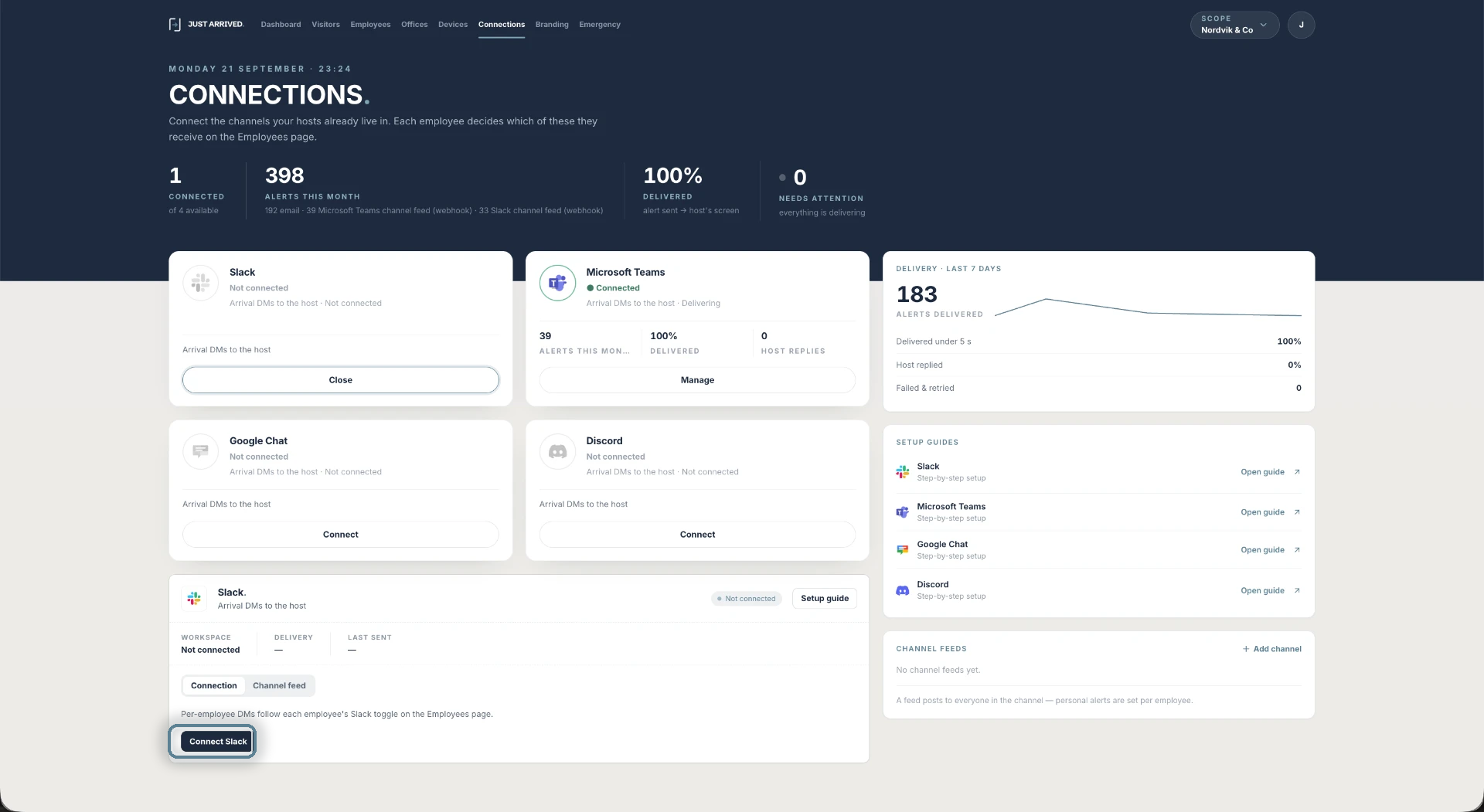
Connect the workspace
In the expanded Slack card in Just Arrived, choose Connect Slack. On the Slack approval page, select the workspace your hosts use and approve the requested permissions.If Slack offers more than one workspace, pick the one your hosts sign in to every day — the connection follows that workspace.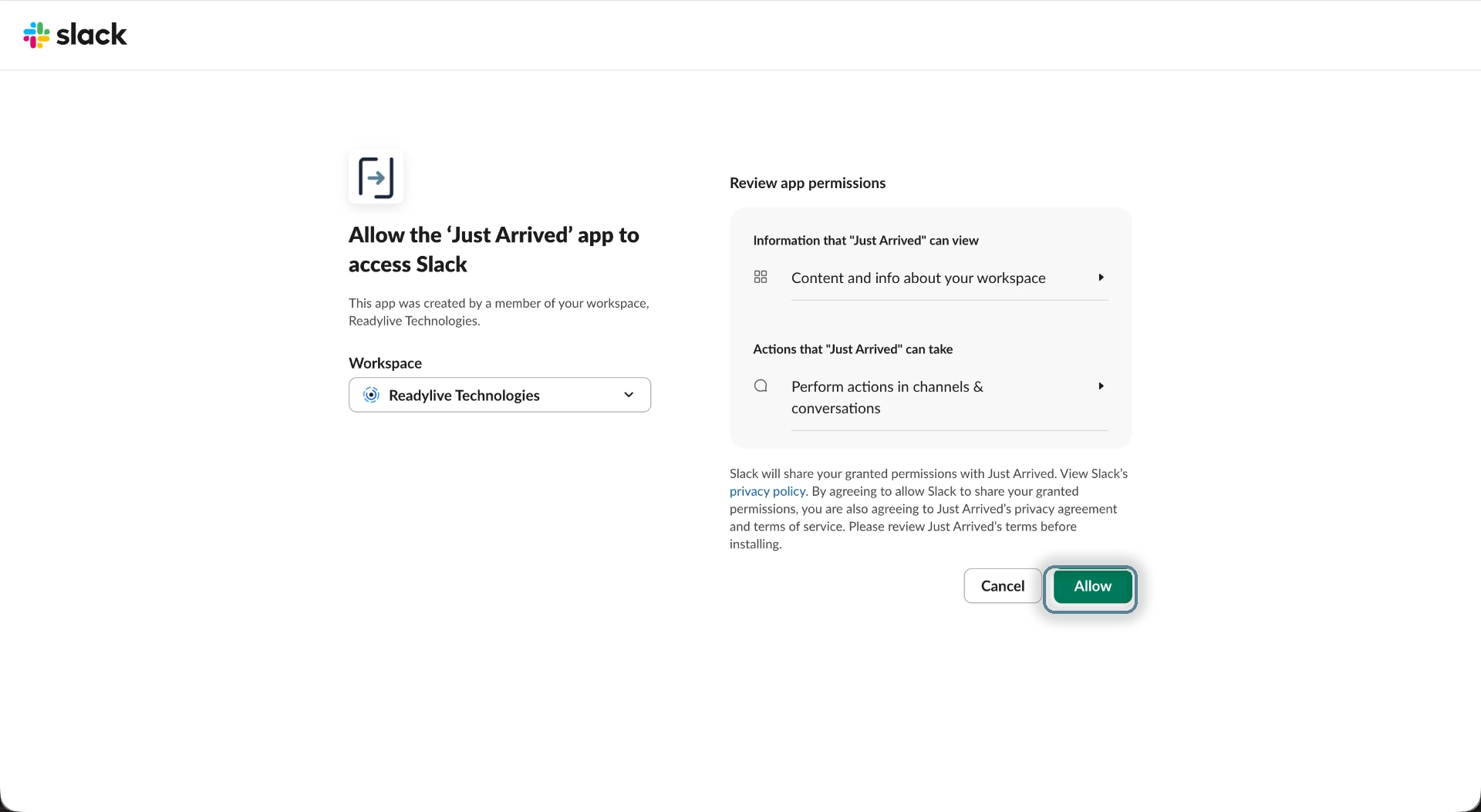
Confirm the connection
Return to Just Arrived → Connections. Expand Slack and confirm that its status is Connected and that the correct Slack workspace name is shown.Connected means Slack accepted the app. Hosts still receive nothing until step 4 — the Slack switch on each employee is off by default.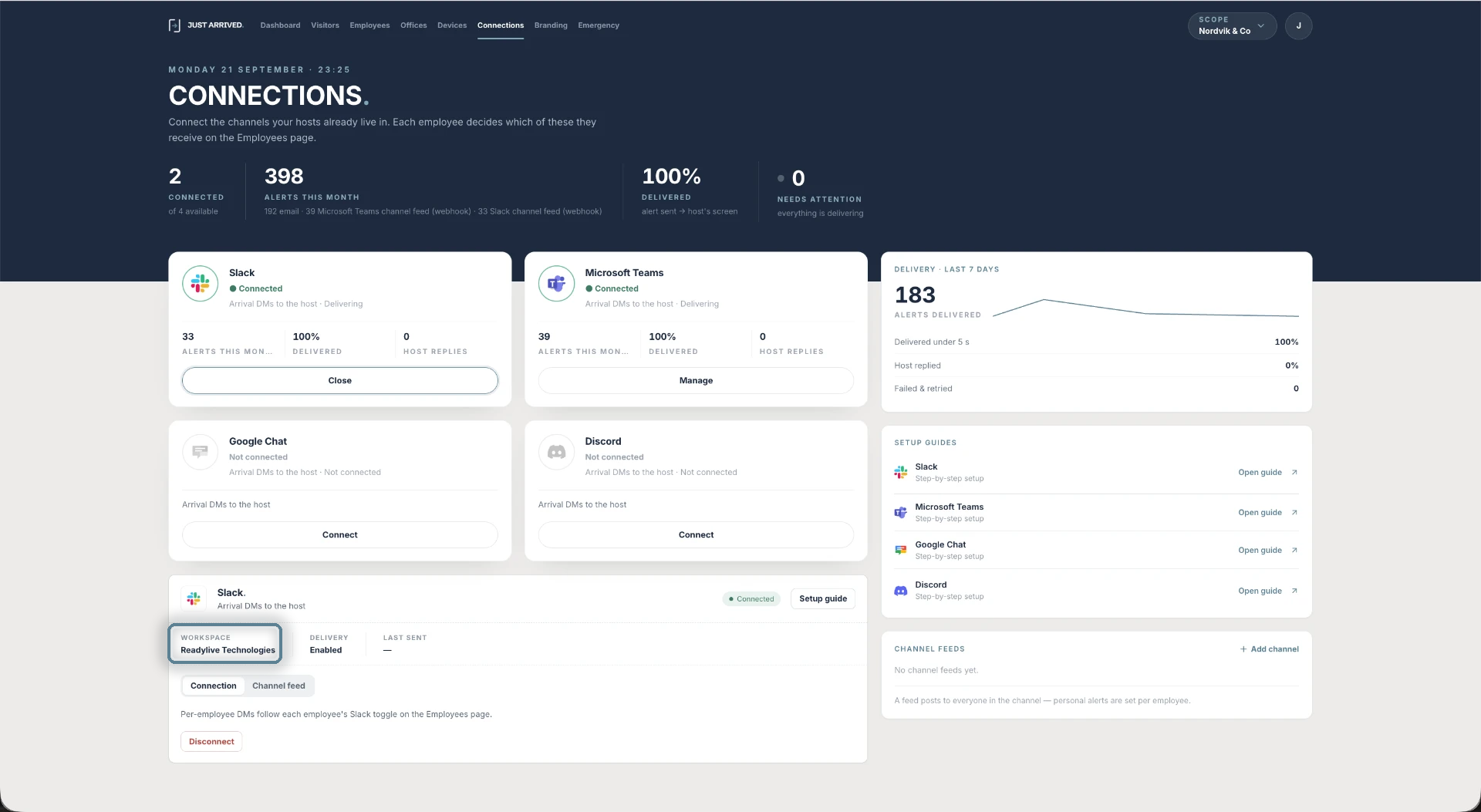
Switch Slack on for hosts
In the Just Arrived admin, open Employees. To enrol everyone at once, click Select, tick Select everyone and click Slack in the Enroll in bar. To enrol one person, open them and switch Slack on under Alerts.Matching is by email: the work email on the employee must be the same address the person uses in Slack. A mismatch is the most common reason a host gets nothing.Enrol everyone in one go: Select → Select everyone → Slack. You can also tick just the people you want before clicking the channel.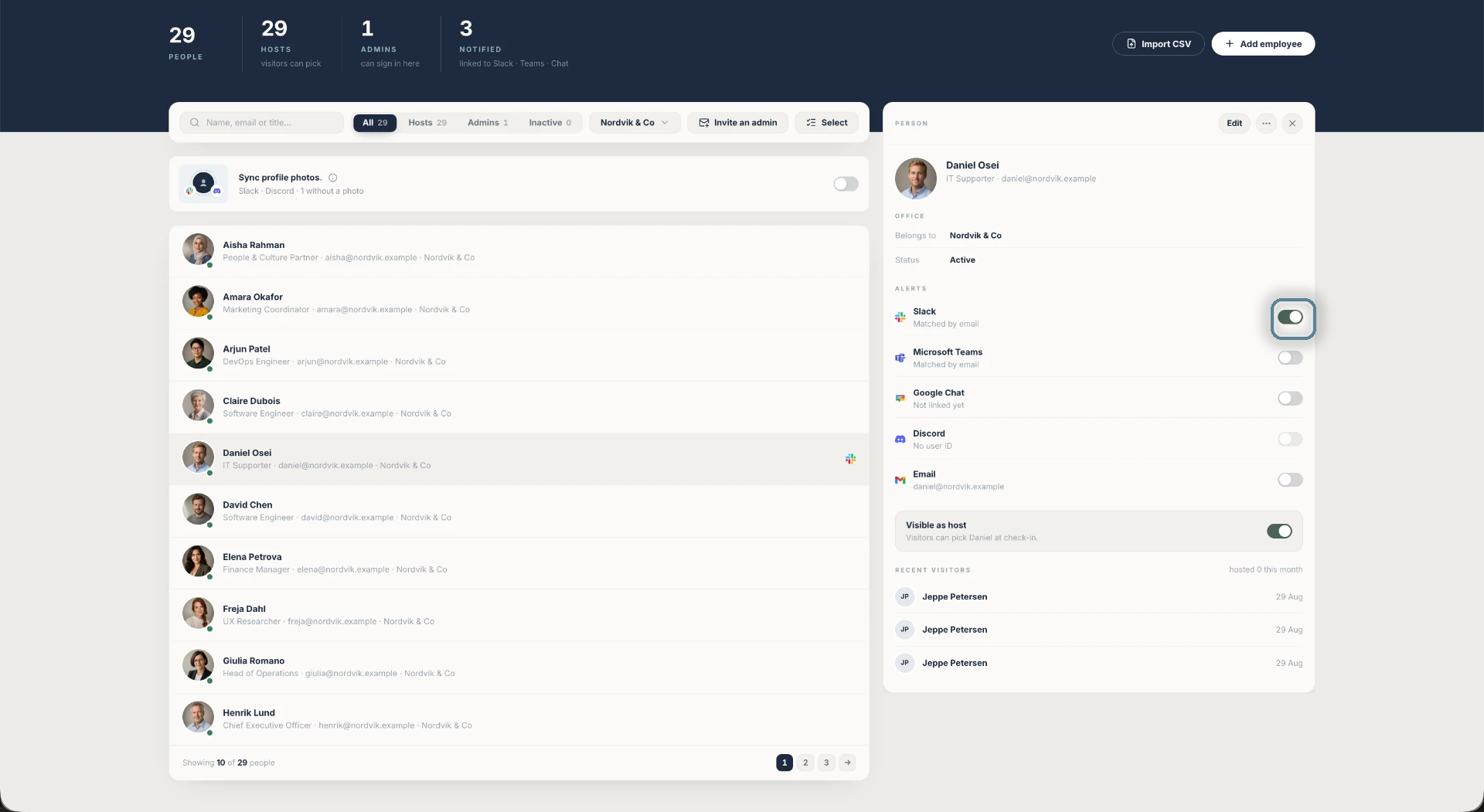
Run a test check-in
Use a Just Arrived kiosk to check in a test visitor and select yourself as the host. Confirm that the Slack message arrives within a few seconds and includes the quick-reply actions.The quick replies — On my way, Be there in 5, Can't make it — are the Host quick replies set under Offices. The reply the host taps is shown to the visitor on the kiosk and on the reception display.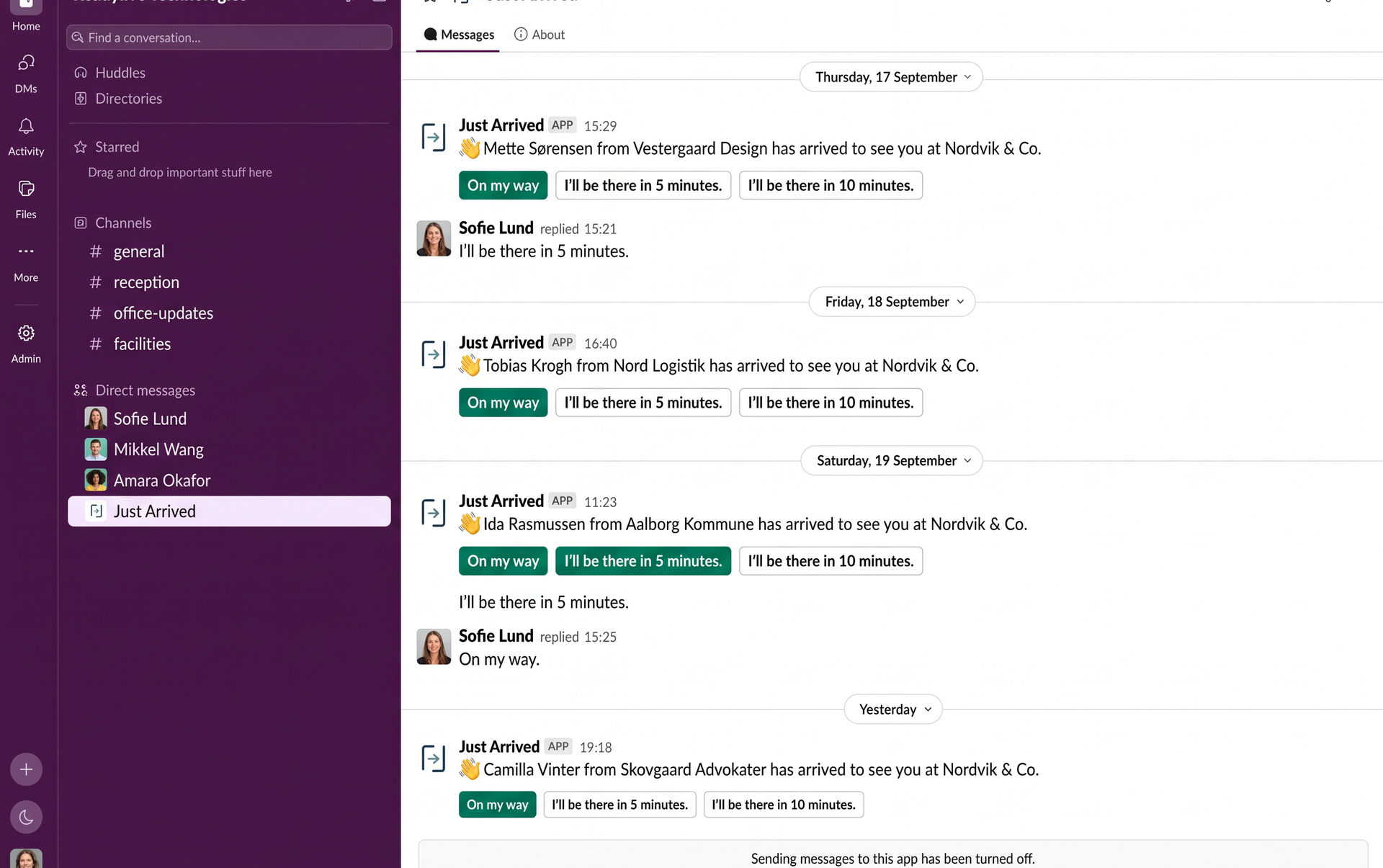
If something doesn’t work
A host gets nothing
Check that their Just Arrived email matches their Slack account email and that Slack is enabled on Employees.
You want to disconnect
Expand Slack on Connections and choose Disconnect. Email alerts remain unchanged.