
Setup guide
Connect Discord.
Deliver visitor arrival messages to hosts in Discord.
- Time
- About 2 minutes per host
- You need
- Manage Server permission
- Done by
- An admin with each host
- Updated
- 22 September 2026
Set it up
Invite the bot
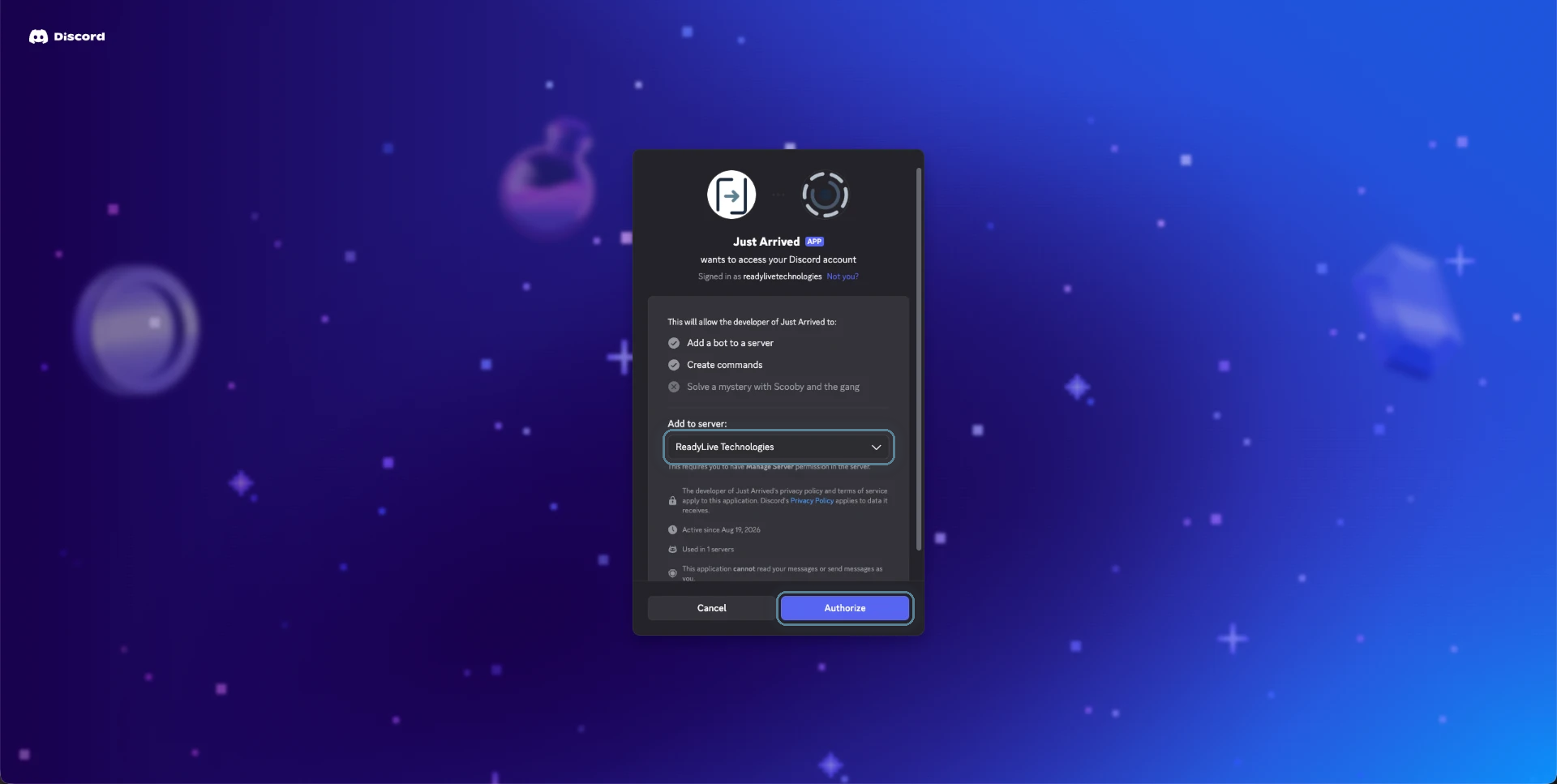
Sign in to the Just Arrived admin, open Connections, expand Discord, and choose the invite action. In Discord, select the server your hosts already use and approve the bot permissions.Inviting the bot needs Manage Server permission. The bot must share a server with each host — that is how Discord lets it send them a direct message.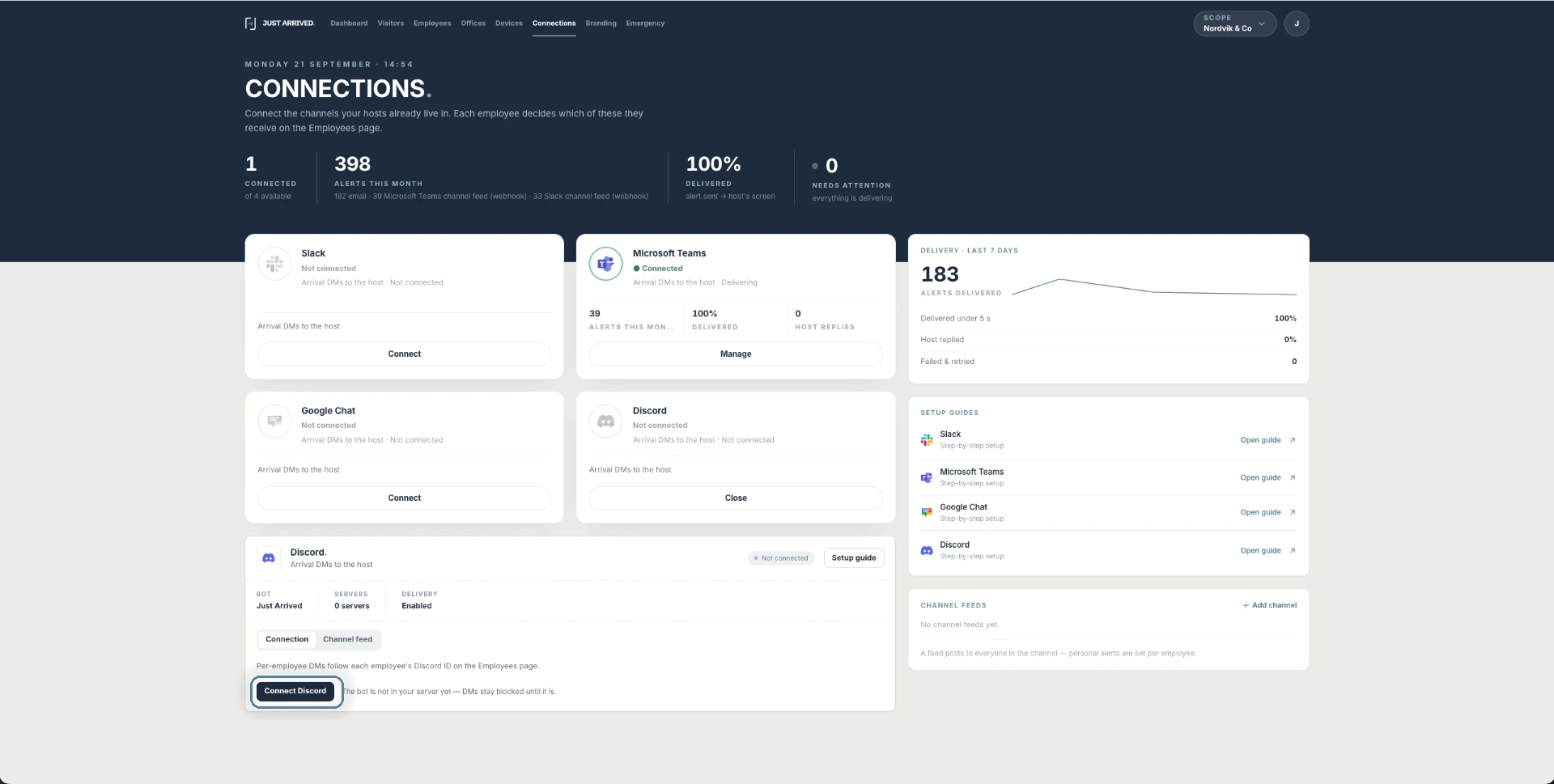
Copy the host user ID
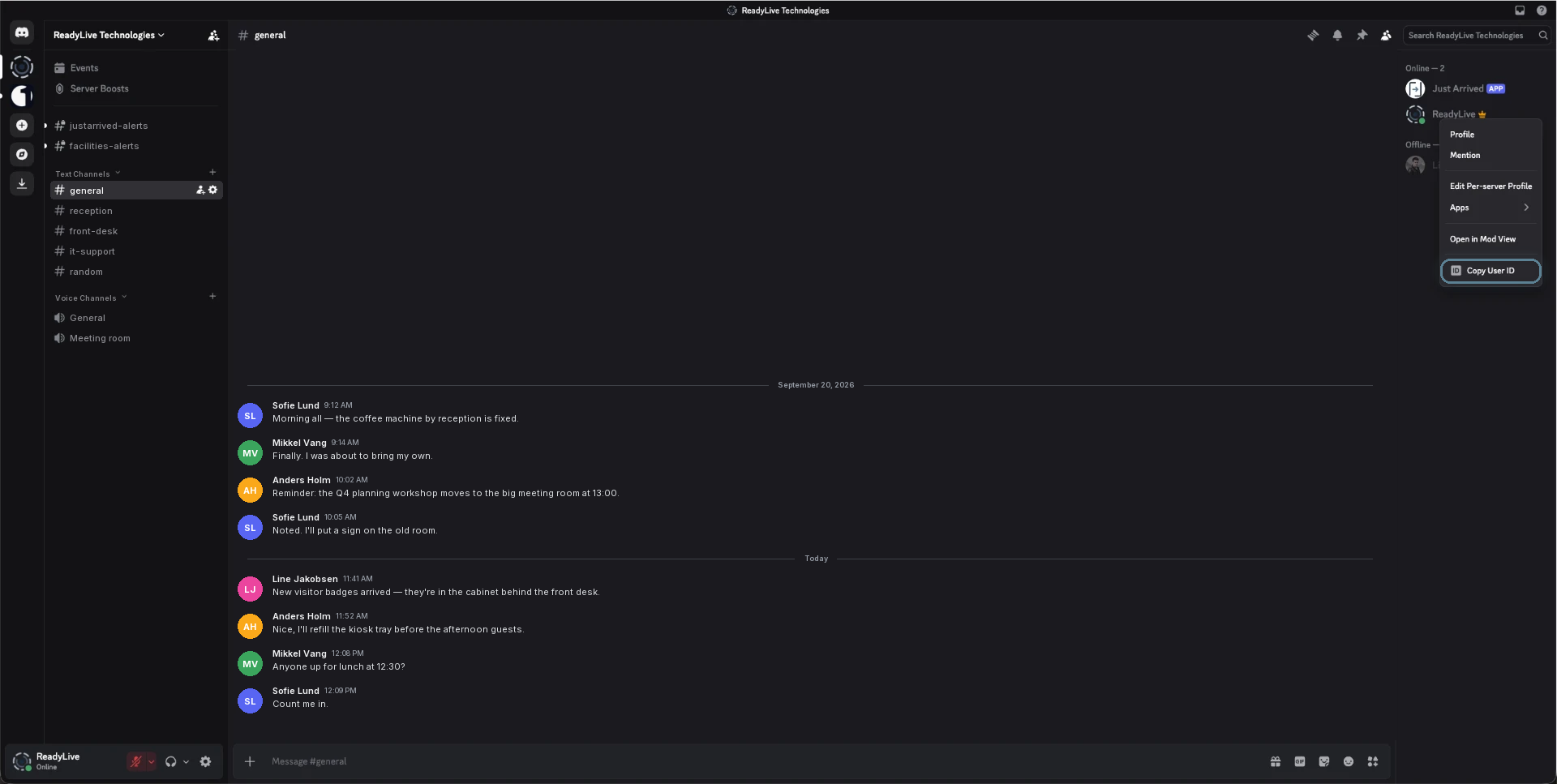
In Discord, open User Settings → Advanced and enable Developer Mode. Right-click the host in your server and choose Copy User ID.A Discord user ID is a long number (17–19 digits), not the @username. Developer Mode is what adds Copy User ID to the right-click menu.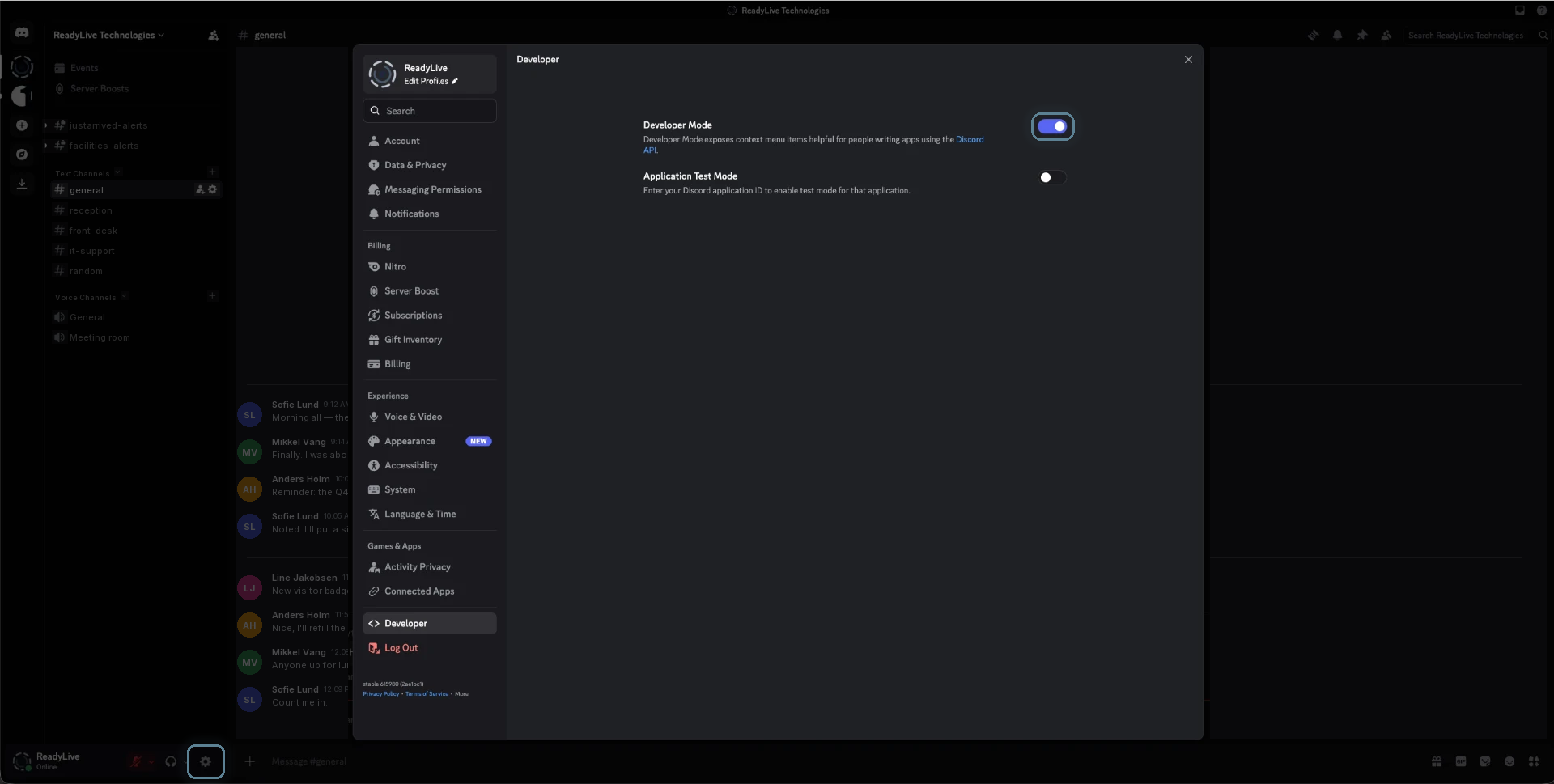
Add the ID to the employee
Return to the Just Arrived admin, open Employees, and edit the host. Paste the copied Discord user ID into their Discord field and save the employee.Paste the number exactly as copied. The Discord switch in step 4 stays disabled until a valid user ID has been saved.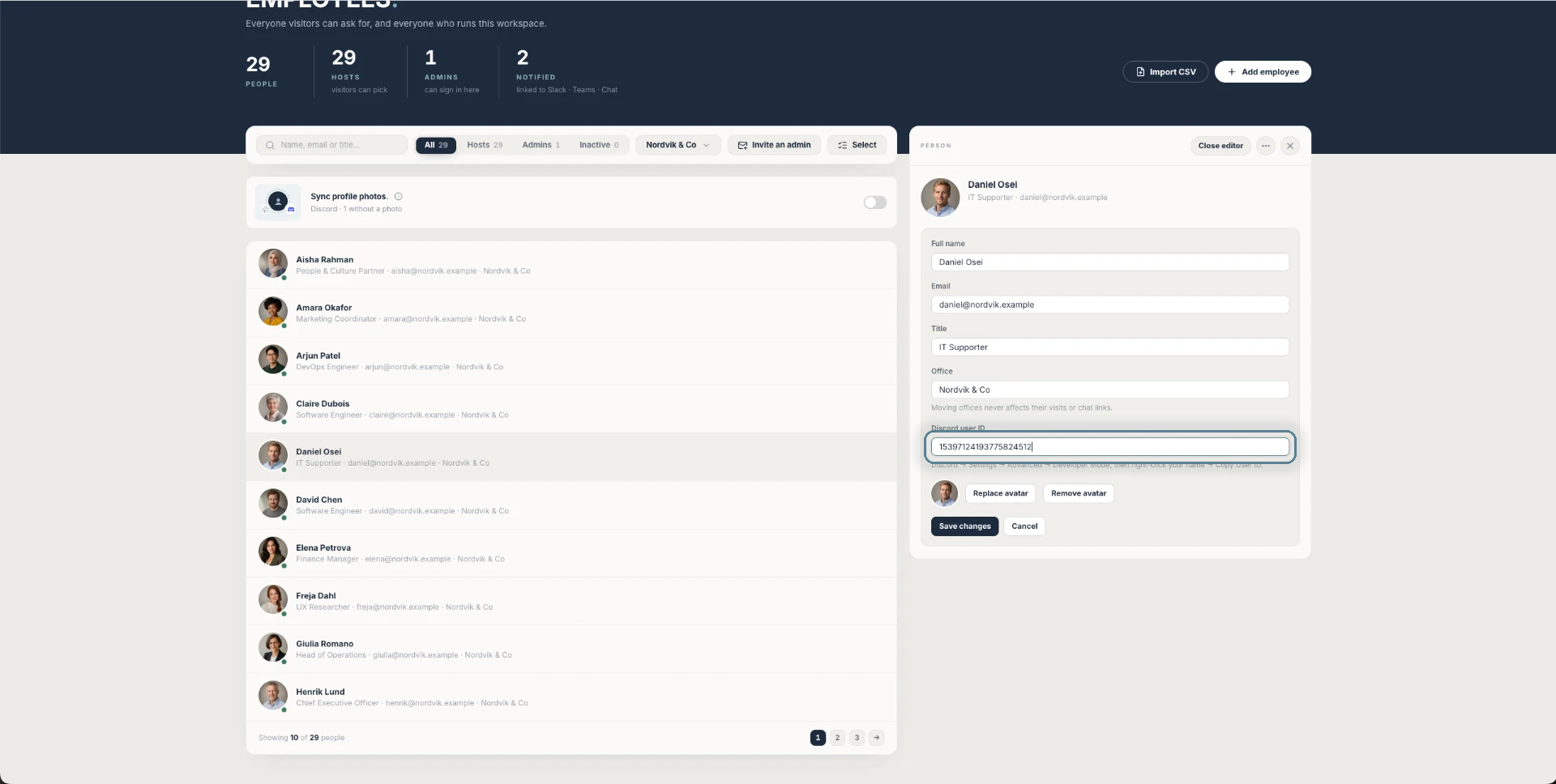
Switch Discord on
Still on the employee in the Just Arrived admin, switch Discord on and save. To enrol several people at once, click Select on the Employees page, tick them (or Select everyone) and click Discord in the Enroll in bar.Hosts must allow direct messages from server members in their Discord privacy settings — otherwise Discord reports the message as blocked.Enrol several at once: Select → tick the people → Discord. Discord only switches on for people who already have a Discord user ID saved (step 3).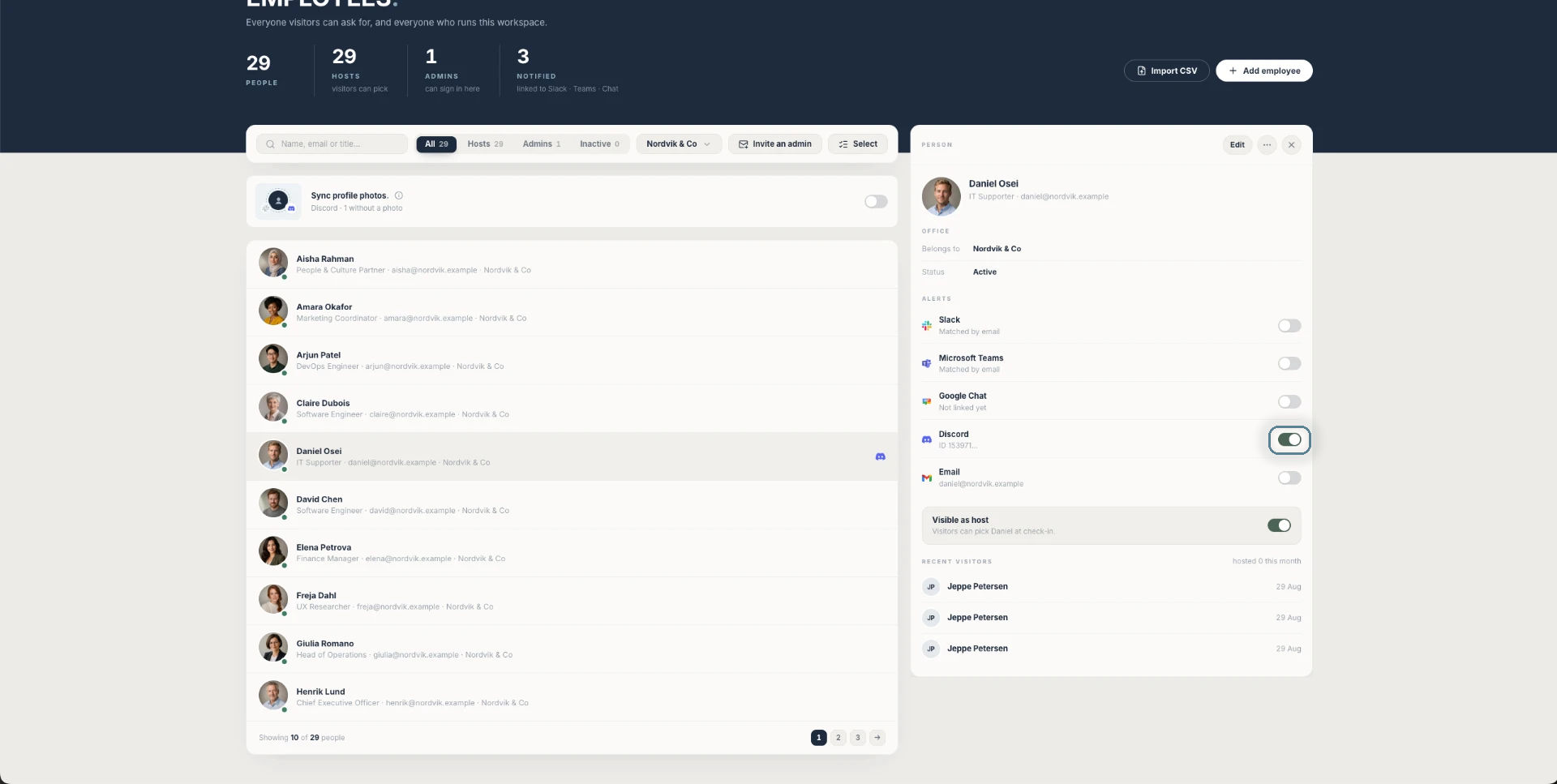
Run a test check-in
Use a Just Arrived kiosk to check in a test visitor and select the Discord-enabled employee as host. Confirm that the direct message arrives in Discord.The message includes the Host quick replies set under Offices. The reply the host taps is shown to the visitor on the kiosk and on the reception display.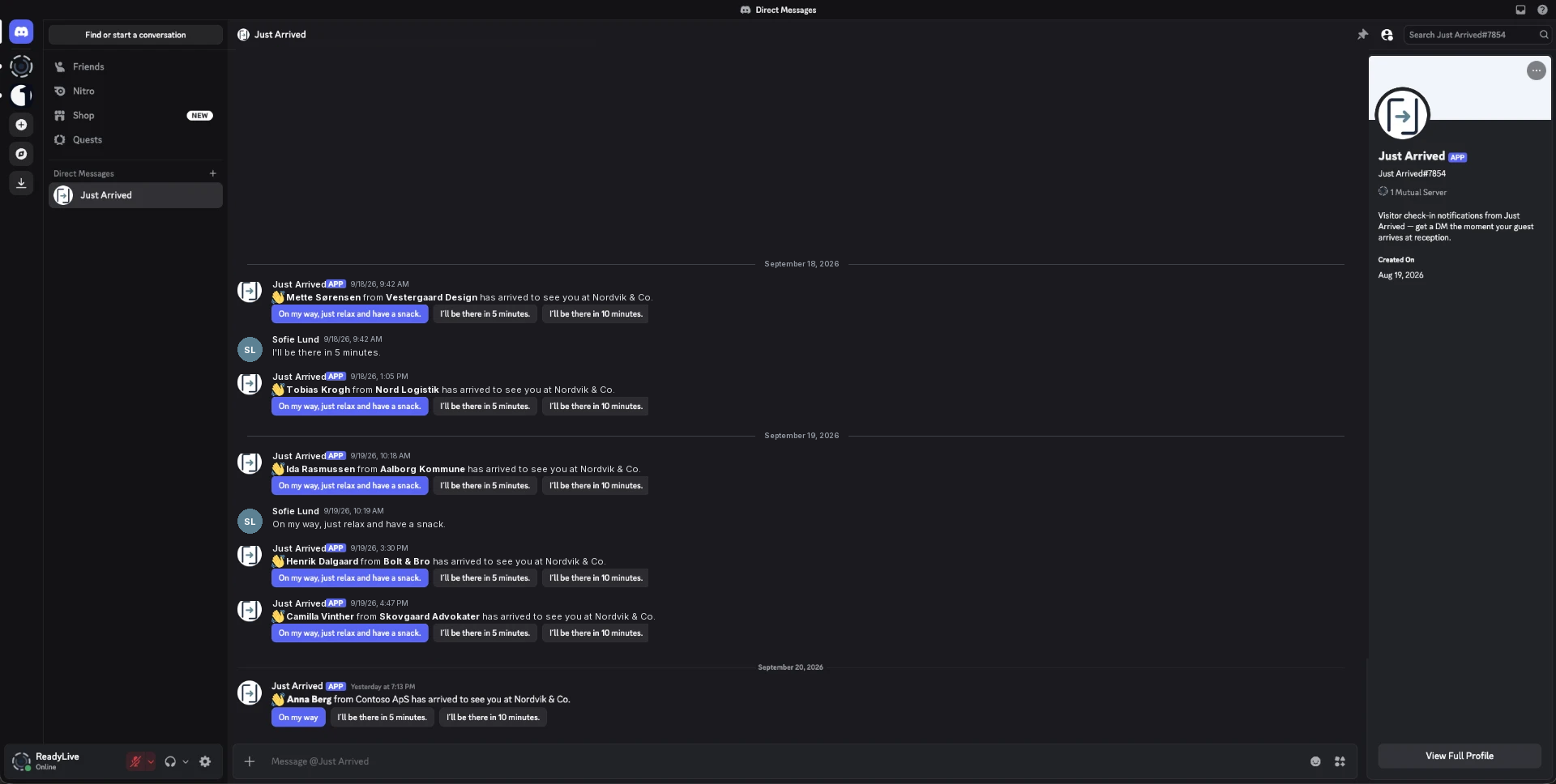
If something doesn’t work
Discord says blocked
The host must share a server with the bot and allow direct messages from server members.
The switch will not turn on
Save the employee's Discord user ID first.